Accounting - Brex
As the lead content designer for Brex's first accounting product, I collaborated with my product partners to create an intuitive and automated workflow for accounting customers.
Onboarding - Integration and importing accounting fields
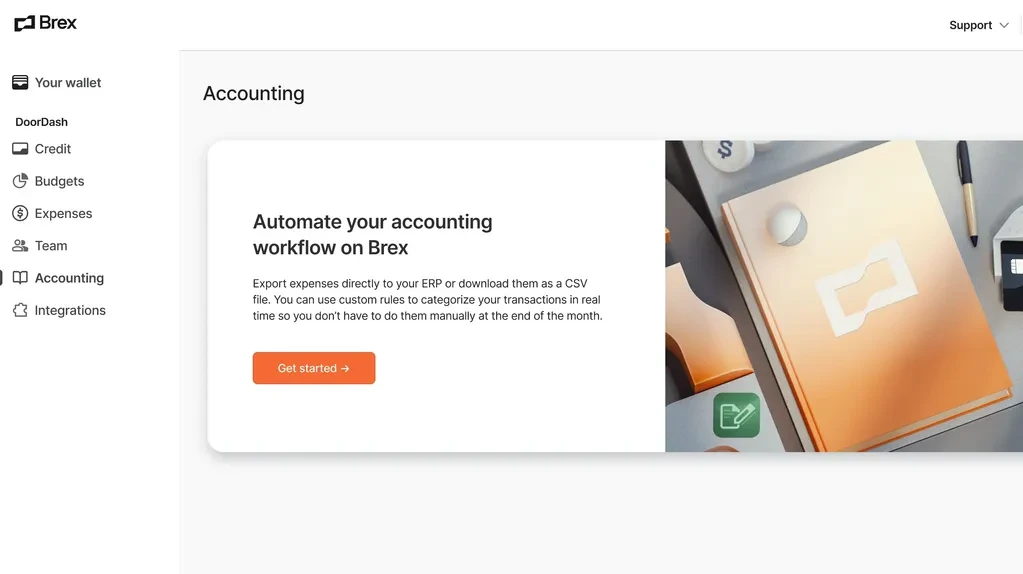
Upon visiting the accounting page for the first time, customers are greeted with an intro to the onboarding experience.
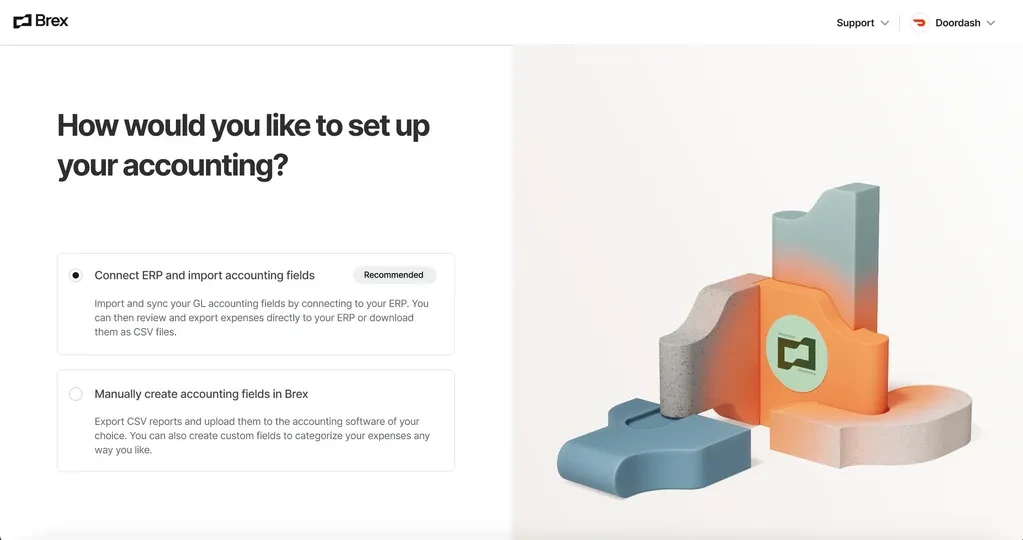
The first step to accounting onboarding involves deciding whether the customer would like to import their accounting fields from their ERP (Enterprise Resource Planning software) or create the fields manually within Brex.
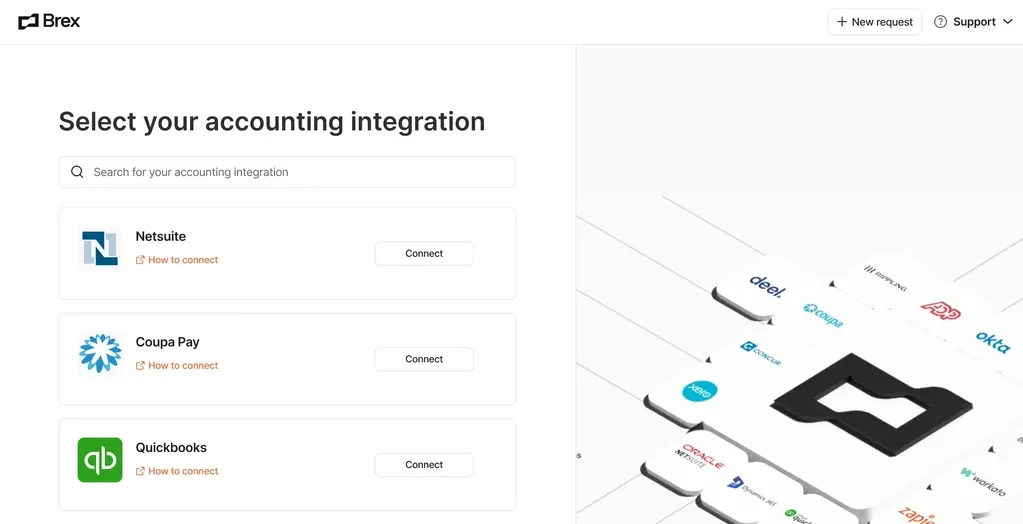
ERP integration selection screen
A preview of the steps is given so customers know what to expect throughout the onboarding experience.
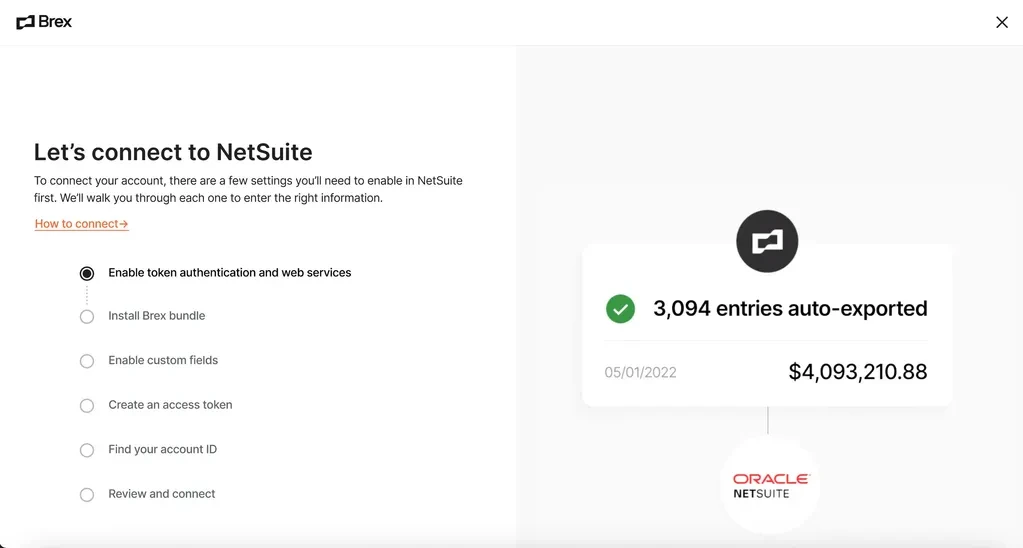
We researched each software integration so we could clearly explain exactly how to connect the customer's accounting software.
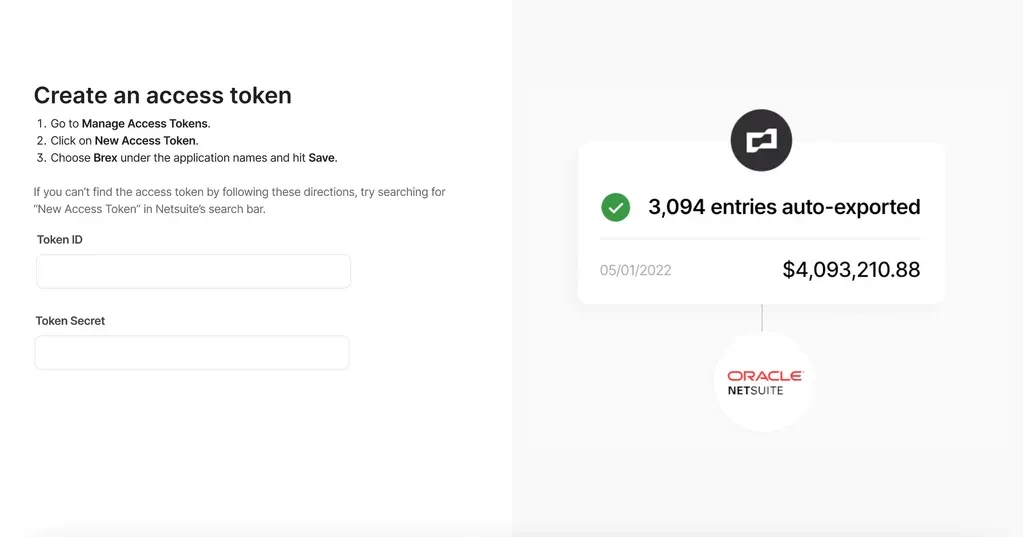
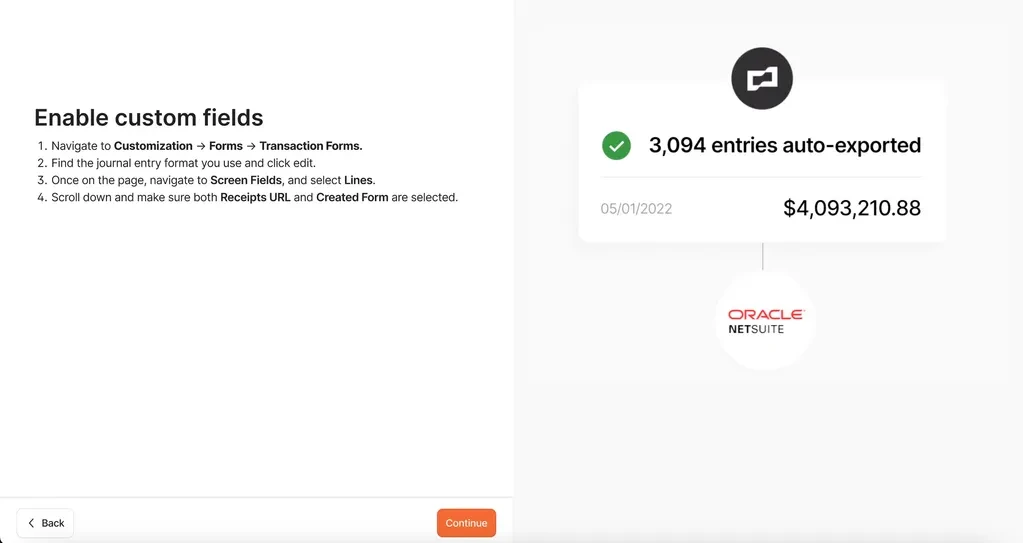
Concise bullet points were used to quickly and clearly guide the customer through the process.
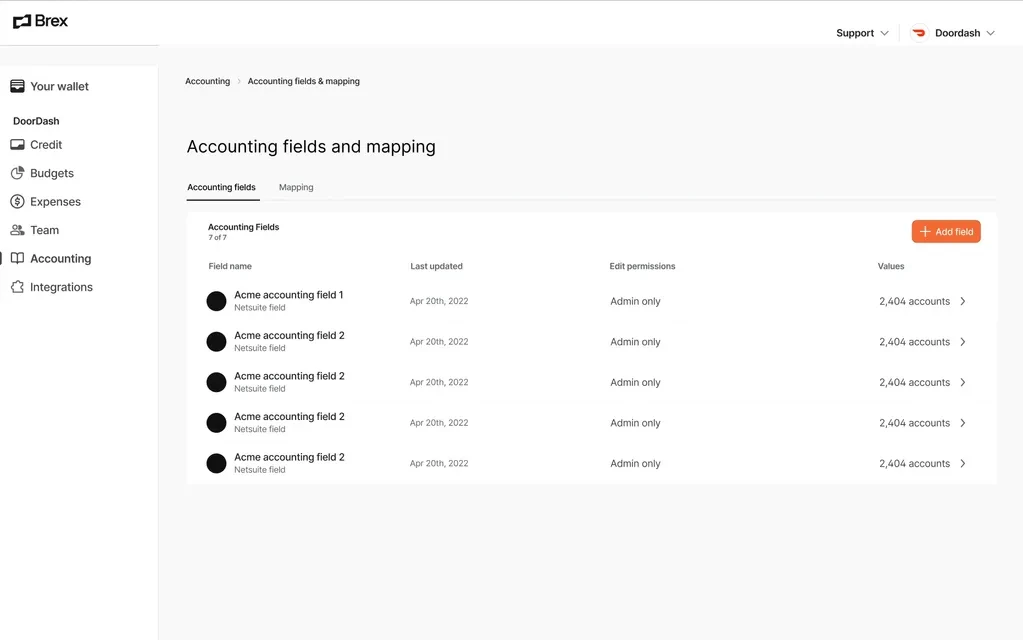
Once the onboarding experience is complete, the customer lands on the accounting fields page so they can review the fields they've imported.
Custom rules - AI automation suggestions
Custom rules are a key component to unlocking accounting automation with Brex. They allow customers to create rules that automatically categorize their expenses—as opposed to categorizing them manually—thus saving valuable hours in the closing process.
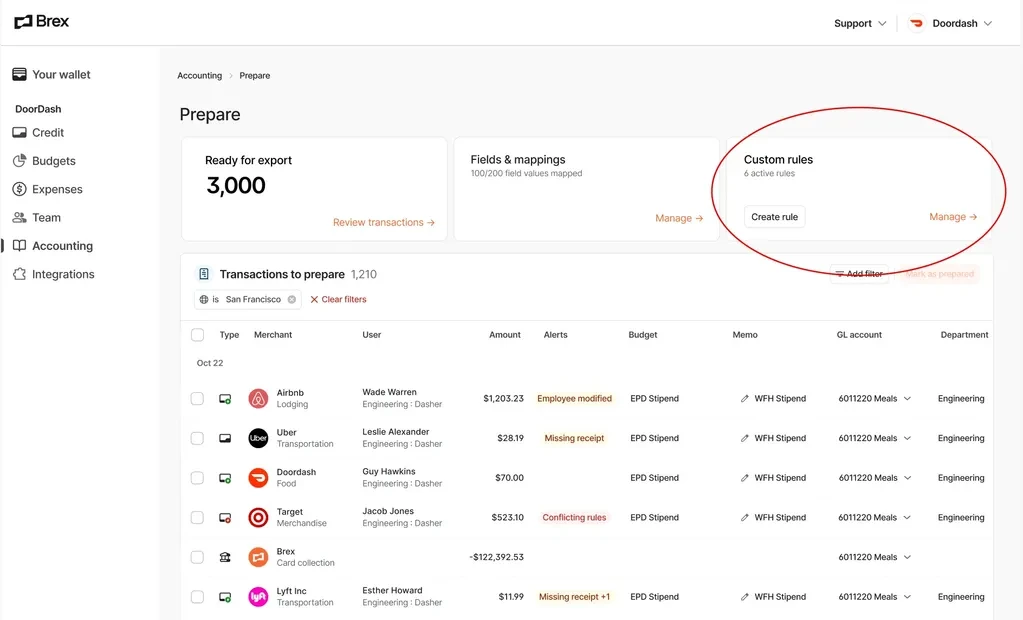
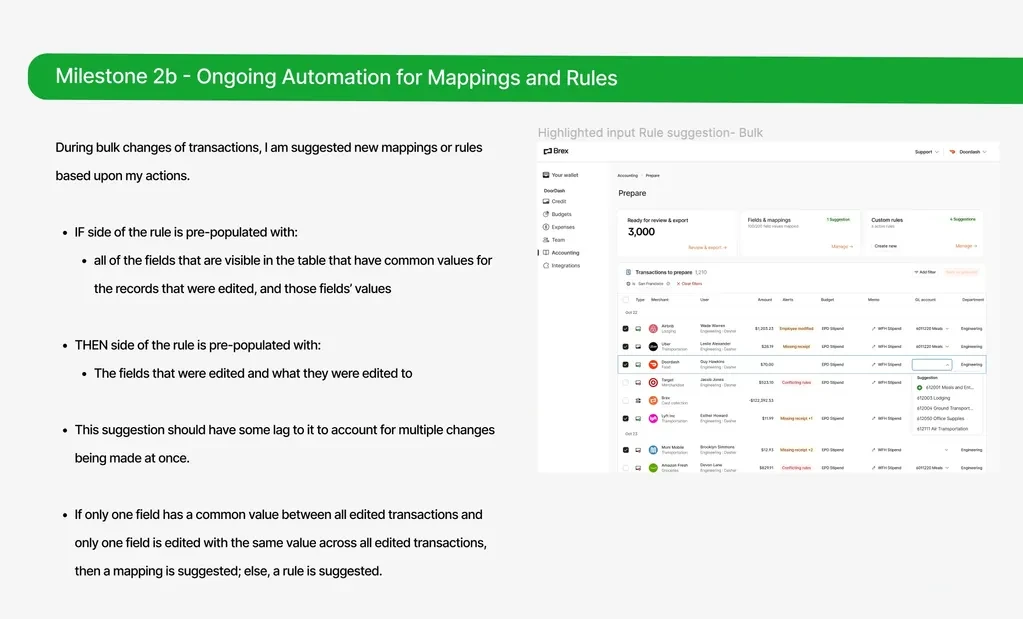
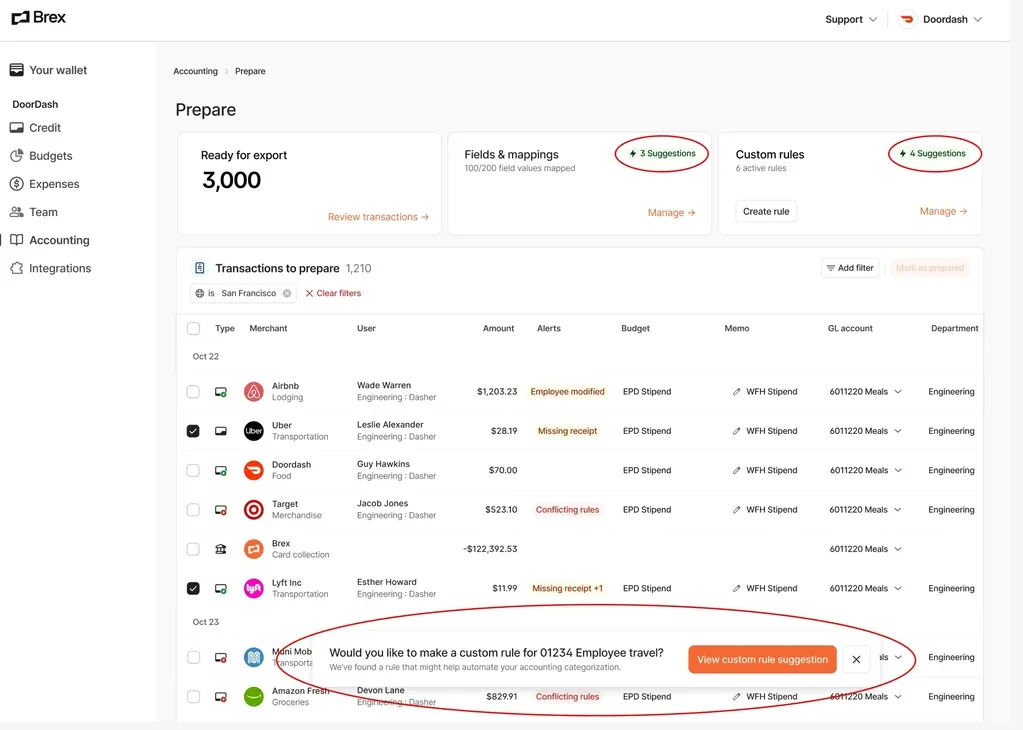
I led the content design for the introduction of AI-powered automation suggestions for new custom rules. In this screen, the customer applied a bulk edit, which triggered a new custom rule suggestion.
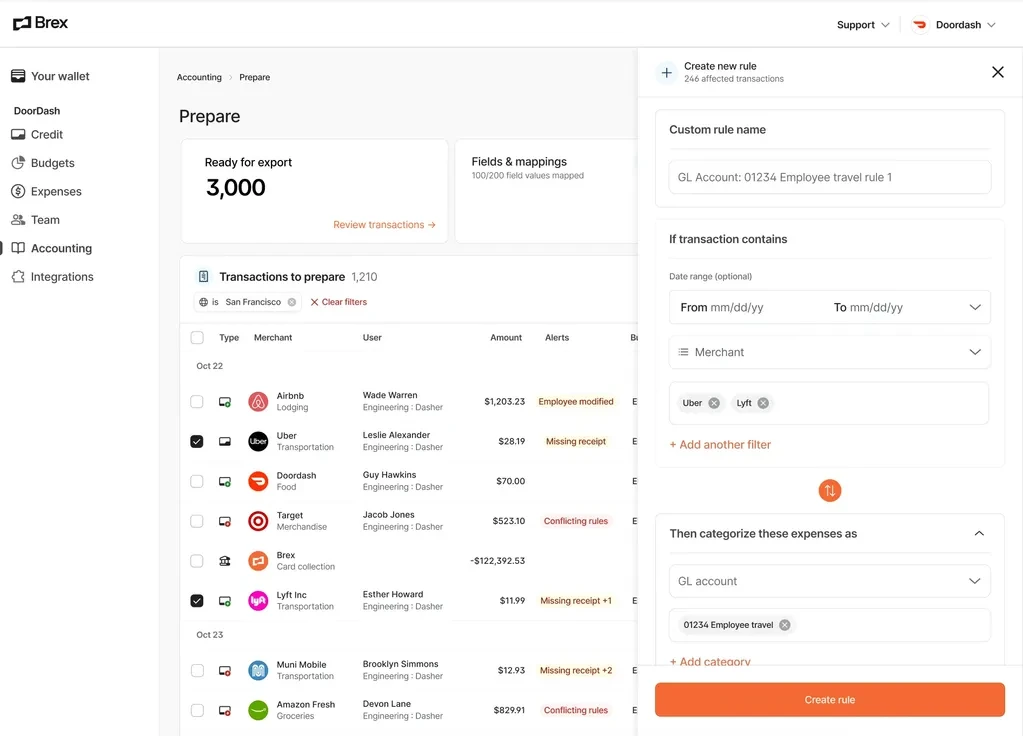
The suggestion banner CTA opens the custom rule suggestion panel, where the customer can preview the rule. The information architecture of the panel displays the two sides of the rule. "If transaction contains" and "then categorize these expenses as" can be read in a logical flow.
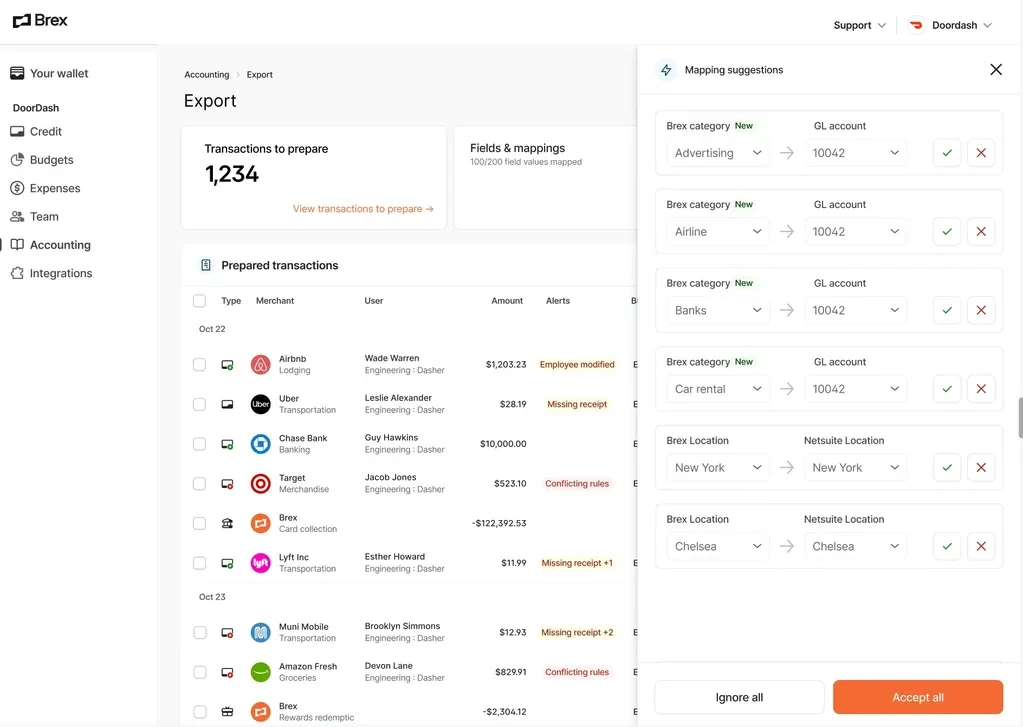
If new accounting fields are detected in the customer's integrated ERP software, we can also display mapping suggestions in the detail panel.
Impact
The new automation suggestions increased our customers' automation rates by 20%.
Cross-functional collaboration
In order to align with the product manager, I would clearly label each product requirement next to its design in Figma so nothing was missed.